
Integrate Amplitude with Optimizely Web Experimentation
TL;DR
Amplitude is an analytics platform built around behavioral event data and user cohorts. Integrating Amplitude with Optimizely Web Experimentation sends experiment decision data into Amplitude as user properties and events, enabling you to build behavioral segments filtered by experiment variation, run funnel analyses comparing control and treatment groups, and use Amplitude cohorts to target Optimizely experiments.
This guide covers two integration methods: importing Amplitude’s official JSON template (the recommended path, maintained by Amplitude with configurable form fields) and writing a custom JSON integration using the track_layer_decision callback for teams that need full control over event names and property formatting. It also covers Amplitude Audience Sync, which lets you send Amplitude cohorts to Optimizely for experiment targeting.
How the Integration Works
When Optimizely buckets a visitor into an experiment or personalization campaign, it fires a decision callback. The integration captures this callback and sends data to Amplitude in two forms: a user property that persists on the visitor's profile (formatted as [Optimizely] ExperimentName = VariationName), and optionally an "Experiment Viewed" event with detailed campaign metadata. Amplitude then associates the experiment context with all subsequent events from that user, enabling segmentation and funnel analysis by variation.
flowchart LR
    A[Visitor lands on page] --> B[Optimizely makes bucketing decision]
    B --> C[Decision callback fires]
    C --> D["amplitude.identify() sets user property"]
    C --> E["amplitude.logEvent('Experiment Viewed')"]
    D --> F[Amplitude User Profile]
    E --> G[Amplitude Event Stream]
    F --> H[Segment funnels by variation]
    G --> H
The user property format follows Amplitude's convention for experiment integrations:
[Optimizely] ExperimentName = VariationName
The properties below are what the custom JSON integration (Method 2) sends with its Experiment Viewed event. Method 1 (Amplitude's official template) sends a different shape — bracket-prefixed string keys ([Optimizely Campaign], [Optimizely Experiment], [Optimizely Variation], [Optimizely Holdback]) on a configurable event name (default: User in Experiment) — see the Method 1 section for details.
Property | Type | Description |
|---|---|---|
| string | The campaign (layer) ID in Optimizely |
| string | The experiment ID within the campaign |
| string | Human-readable experiment name. Optimizely's runtime appends the experiment ID in parentheses, so the value lands in Amplitude as |
| string | The assigned variation ID |
| string | Human-readable variation name. Optimizely's runtime appends the variation ID in parentheses, so the value lands in Amplitude as |
| boolean | Whether the visitor is in the holdback group |
Prerequisites
Before starting the integration, confirm the following:
Amplitude Browser SDK is installed and initialized on your site. The Amplitude SDK must load before the Optimizely Web Experimentation snippet fires its first decision. If Amplitude loads after Optimizely, the initial bucketing event is lost.
Optimizely Web Experimentation snippet is deployed on the same pages.
Admin access to both the Amplitude project (for verifying data) and the Optimizely project (Settings > Integrations).
Amplitude API key is configured in your Amplitude SDK initialization.
Load Order
The Amplitude SDK must be available in window.amplitude before Optimizely makes its first bucketing decision. The simplest way to guarantee this is to load Amplitude in the <head> tag before the Optimizely snippet:
<head>
  <!-- 1. Amplitude SDK (must load first) -->
  <script src="https://cdn.amplitude.com/libs/analytics-browser-2.11.4-min.js.gz"></script>
  <script>
    window.amplitude.init("YOUR_API_KEY");
  </script>

  <!-- 2. Optimizely Web snippet (loads second) -->
  <script src="https://cdn.optimizely.com/js/YOUR_PROJECT_ID.js"></script>
</head>
If you use a tag manager, ensure the Amplitude tag fires with a higher priority than the Optimizely snippet.
Method 1: Amplitude's Official JSON Integration
There is no built-in Amplitude integration in Optimizely’s catalog. Instead, Amplitude maintains an official JSON integration that you import via Optimizely’s Custom Analytics Integration flow. Once imported, it appears in your project’s integrations list as “Amplitude Analytics Integration” and behaves like a first-class integration with configurable form fields (property prefix, optional event name, Amplitude instance name).
This is the recommended path for most teams because it’s maintained by Amplitude and carries configuration knobs you’d otherwise have to add yourself.
Step 1: Import Amplitude's JSON template
In your Optimizely project, go to Settings > Integrations.
Click Create Analytics Integration > Using JSON.
Copy the latest template from Amplitude’s docs (kept current there): https://amplitude.com/docs/data/source-catalog/optimizely.
Paste it into the JSON Code textbox.
Click Create Template.
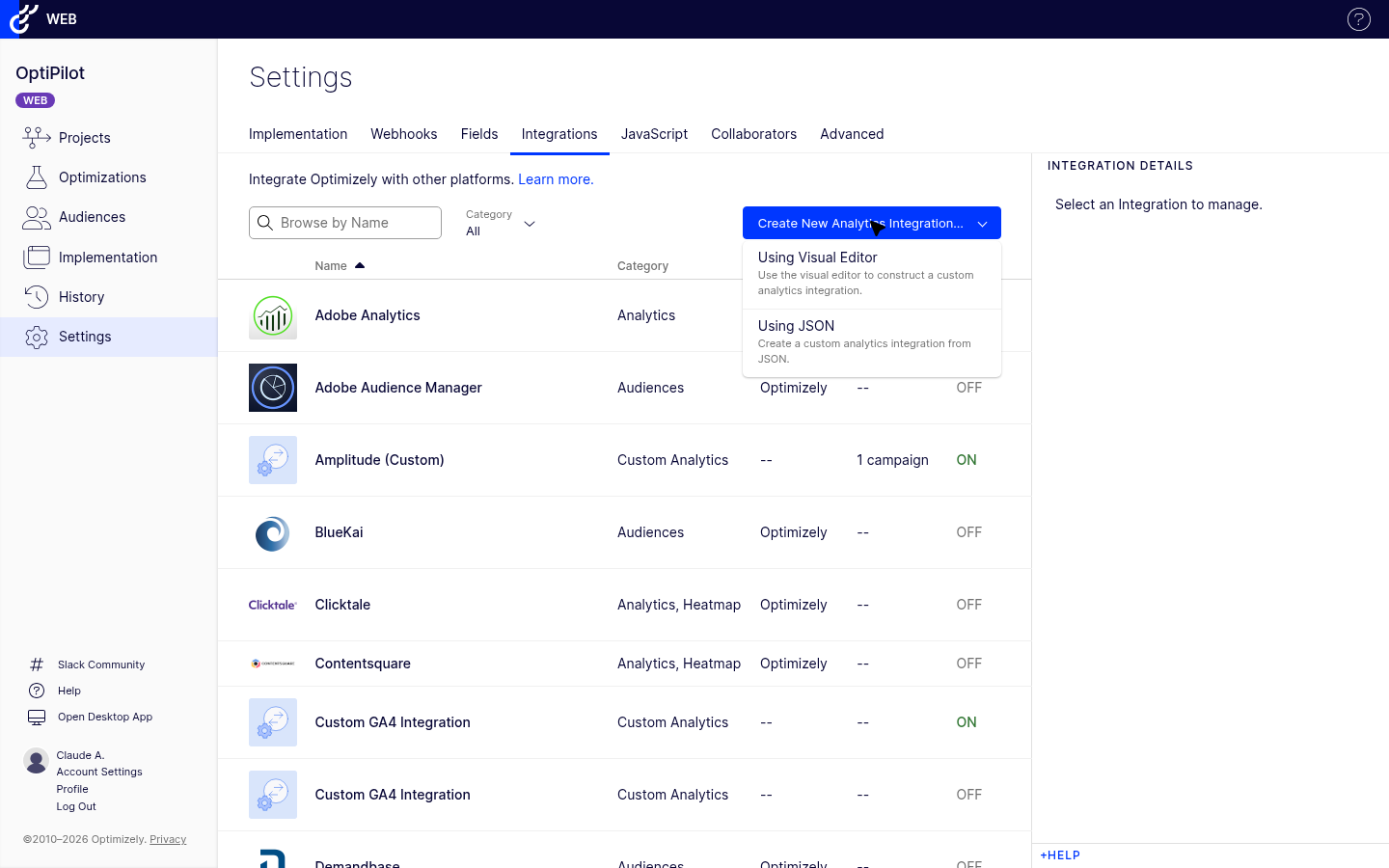
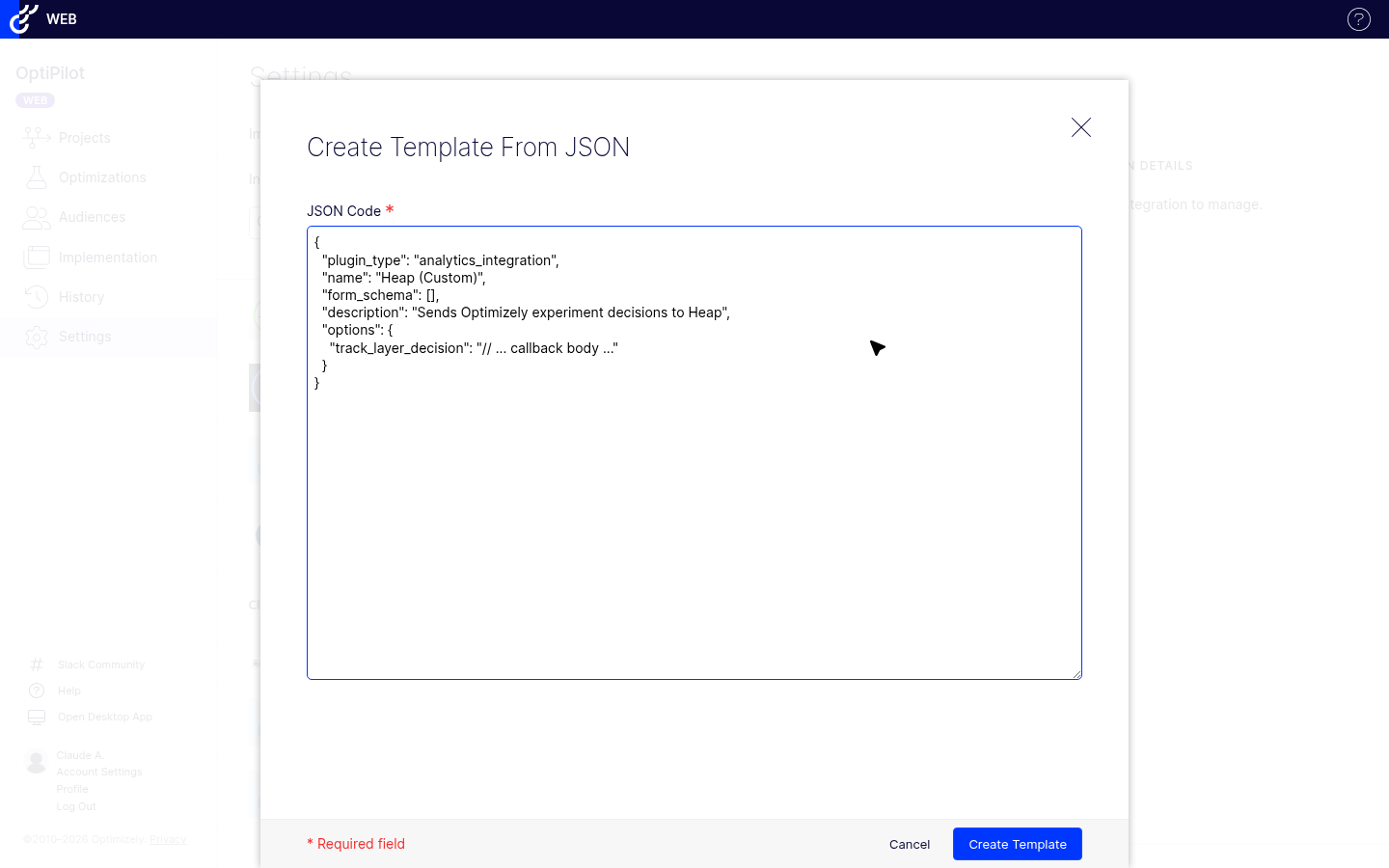
The integration appears in your list as Amplitude Analytics Integration with a Custom Analytics category badge.
Step 2: Enable it at the project level
Click the Amplitude Analytics Integration row to open the Integration Details panel.
Click On to enable it for the project.
Optionally check Enable for all new experiments if you want every future experiment to track to Amplitude by default.
Step 3: Configure per-experiment settings
For each experiment you want tracked in Amplitude:
Open the experiment, go to Manage Campaign > Integrations.
Check the Tracked box for Amplitude Analytics Integration.
Configure the optional fields exposed by Amplitude’s template:
User Property Prefix — defaults to
[Optimizely Experiment]. The user property Amplitude sets follows the format<prefix> <experiment_name>.Send Event —
Noby default. Set toYesto also send a discrete event (e.g.User in Experiment) every time a decision fires.Event Name — only relevant when Send Event is
Yes. Defaults toUser in Experiment.Instance Name — leave blank unless you initialize Amplitude with a named instance (e.g.
amplitude.getInstance('my-instance')).
Click Save.
What Amplitude's official integration sends
When an experiment fires its bucketing decision, the integration:
Calls
amplitude.identify()with a user property keyed<prefix> <experiment_name>and the variation name as the value. With the default prefix this looks like[Optimizely Experiment] Homepage Hero Test = Blue CTA.Optionally calls
amplitude.logEvent()with the configured event name and properties for campaign, experiment, and variation IDs (only if Send Event is enabled).
The track_layer_decision callback inside Amplitude’s template handles SDK readiness automatically (waits for window.amplitude.getInstance().onInit) and supports both single-instance and named-instance Amplitude initializations.
When to choose Method 1 vs Method 2
Method 1 (Amplitude’s official) | Method 2 (custom JSON) | |
|---|---|---|
Maintained by | Amplitude | You |
Sends user property | Yes (configurable prefix) | Yes ( |
Sends event | Optional (default off) | Yes (always sends |
Sets people property | No | Yes |
Multi-instance Amplitude | Yes (Instance Name field) | No (uses |
Customization | Limited to template’s fields | Full — edit the JS in the JSON to fit |
Best for | Teams that want low-maintenance, official path | Teams needing custom event names, custom property names, or |
If you don’t need Method 2’s specific behaviors (custom event name, people-property write, simpler [Optimizely] prefix), start with Method 1 — it’s less code to maintain.
Method 2: Custom JSON Integration
The custom JSON integration gives you full control over what data is sent to Amplitude and how it is formatted. This approach uses Optimizely's Custom Analytics Integration (JSON plugin) with the track_layer_decision callback to call the Amplitude SDK directly.
Step 1: Create the JSON Integration
In your Optimizely project, go to Settings > Integrations.
Click Create Analytics Integration > Using JSON.
Paste the following configuration:
{
  "plugin_type": "analytics_integration",
  "name": "Amplitude (Custom)",
  "form_schema": [],
  "description": "Sends Optimizely experiment decisions to Amplitude as user properties and events",
  "options": {
    "track_layer_decision": "var state = window['optimizely'].get('state');\nvar decisionObj = null;\nvar expName = String(campaignId);\nvar varName = String(variationId);\n\nif (state) {\n  try {\n    decisionObj = state.getDecisionObject({ campaignId: campaignId });\n    if (decisionObj) {\n      expName = decisionObj.experiment || expName;\n      varName = decisionObj.variation || varName;\n    }\n  } catch (e) {}\n}\n\nvar propertyName = '[Optimizely] ' + expName;\nvar propertyValue = isHoldback ? 'holdback' : varName;\n\nvar utils = window['optimizely'].get('utils');\nutils.waitUntil(function() {\n  return typeof window.amplitude !== 'undefined';\n}).then(function() {\n  var identify = new window.amplitude.Identify().set(propertyName, propertyValue);\n  window.amplitude.identify(identify);\n\n  window.amplitude.logEvent('Experiment Viewed', {\n    campaign_id: String(campaignId),\n    experiment_id: String(experimentId),\n    experiment_name: expName,\n    variation_id: String(variationId),\n    variation_name: varName,\n    is_holdback: isHoldback\n  });\n});\n"
  }
}
Click Save Integration.
What the Callback Does
The options.track_layer_decision callback fires each time Optimizely makes a bucketing decision. Here is a breakdown of the logic:
Retrieving human-readable names: The callback uses state.getDecisionObject({ campaignId }) to look up the experiment and variation names. If the state API is unavailable or the project has Mask descriptive names enabled, it falls back to numeric IDs.
var state = window.optimizely && window.optimizely.get('state');
var decisionObj = null;
var expName = String(campaignId);
var varName = String(variationId);

if (state) {
  try {
    decisionObj = state.getDecisionObject({ campaignId: campaignId });
    if (decisionObj) {
      expName = decisionObj.experiment || expName;
      varName = decisionObj.variation || varName;
    }
  } catch (e) {}
}
Waiting for Amplitude to be ready: The callback uses optimizely.get('utils').waitUntil() to defer execution until window.amplitude is available. This handles cases where Amplitude loads asynchronously after the Optimizely snippet — the decision data is held until Amplitude initializes, then sent.
var utils = window['optimizely'].get('utils');
utils.waitUntil(function() {
  return typeof window.amplitude !== 'undefined';
}).then(function() {
  // Amplitude API calls run here once Amplitude is ready
});
Setting the user property: The Identify API sets a persistent property on the user's Amplitude profile. The format [Optimizely] ExperimentName = VariationName follows Amplitude's standard convention for experiment integrations.
var propertyName = '[Optimizely] ' + expName;
var propertyValue = isHoldback ? 'holdback' : varName;

var identify = new window.amplitude.Identify().set(propertyName, propertyValue);
window.amplitude.identify(identify);
Logging the event: The logEvent call sends a discrete "Experiment Viewed" event with campaign metadata. This event enables time-based analysis (when did the user enter the experiment?) and funnel filtering.
window.amplitude.logEvent('Experiment Viewed', {
  campaign_id: String(campaignId),
  experiment_id: String(experimentId),
  experiment_name: expName,
  variation_id: String(variationId),
  variation_name: varName,
  is_holdback: isHoldback
});
Step 2: Enable the Integration
After saving the JSON:
Toggle the integration to Enabled in Settings > Integrations.
Optionally check Enable for all new experiments.
For existing experiments, go to each experiment's Manage Campaign > Integrations tab and enable the Amplitude (Custom) integration.
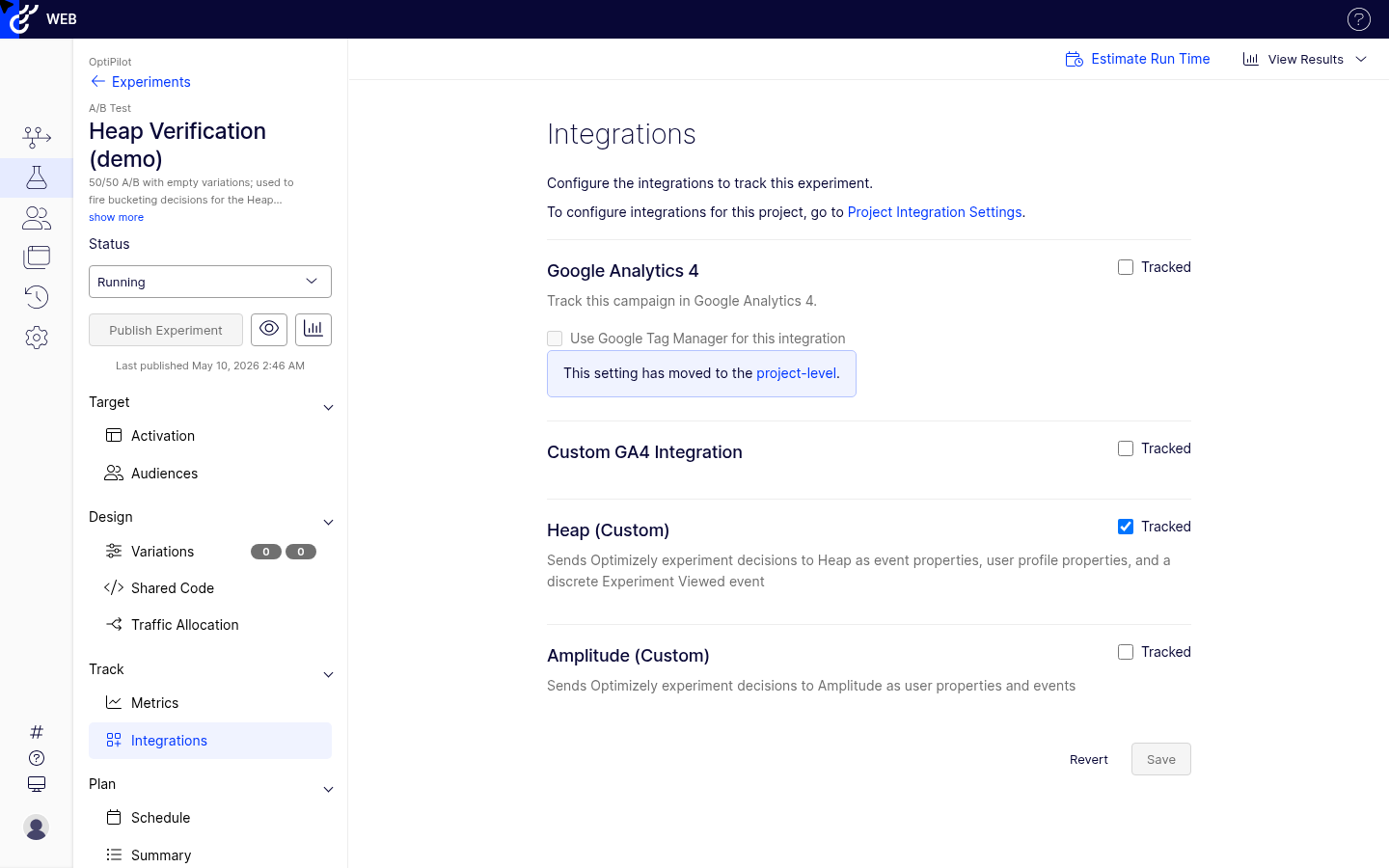
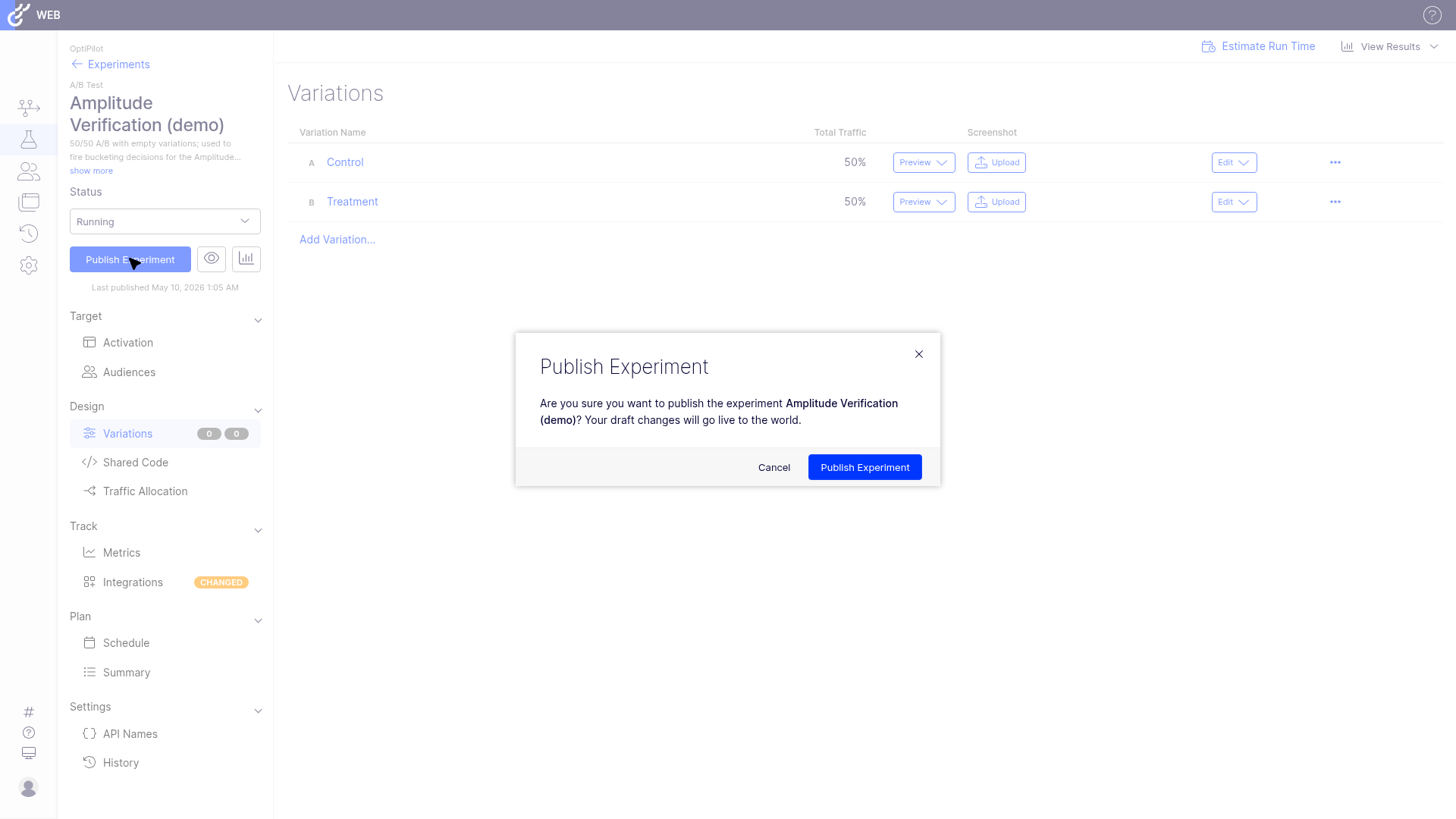
Verifying the Integration
After enabling the integration, verify that data reaches Amplitude correctly.
Console Verification
Open your browser's developer console on a page with an active experiment:
// Check if Amplitude is loaded
console.log("Amplitude loaded:", typeof window.amplitude !== "undefined");

// Check Optimizely experiment state
var state = window.optimizely && window.optimizely.get("state");
if (state) {
  var campaigns = state.getCampaignStates({ isActive: true });
  for (var id in campaigns) {
    var c = campaigns[id];
    console.log("Campaign " + id + ":", {
      experimentId: c.experiment && c.experiment.id,
      variationId: c.variation && c.variation.id,
      isHoldback: c.isInCampaignHoldback
    });
  }
}
Amplitude Dashboard Verification
In the Amplitude dashboard, go to User Look-Up and search for a test user.
Check the User Properties panel. You should see a property like
[Optimizely] Homepage Hero Test = Blue CTA Button.Check the Event Stream. You should see an "Experiment Viewed" event with the campaign and variation metadata.
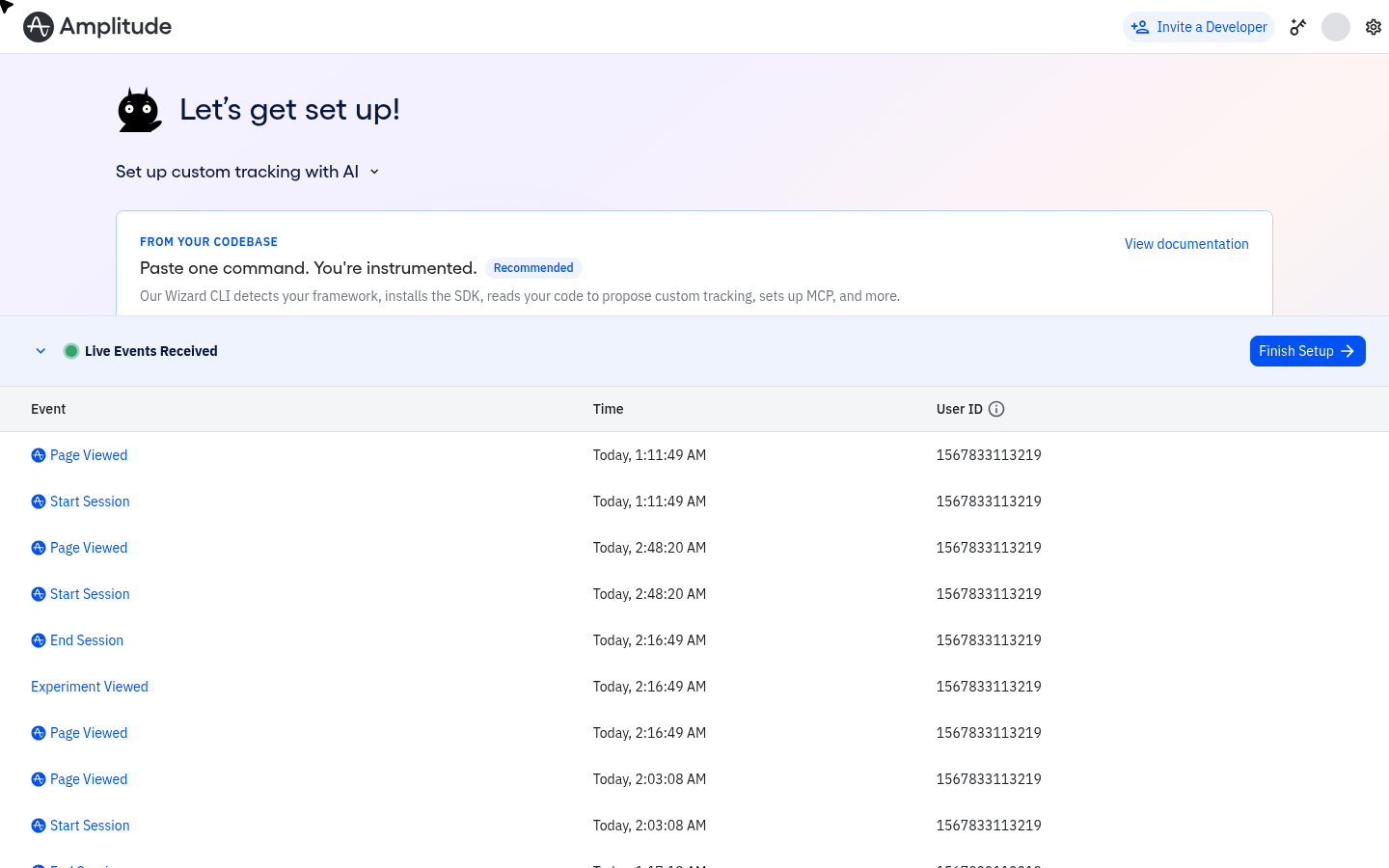
If you do not see the user property but see the event (or vice versa), the Amplitude SDK may have been in a partially initialized state when the decision fired. See the Troubleshooting section.
Amplitude Event Segmentation
To validate that data flows consistently:
Go to Analytics > Event Segmentation in Amplitude.
Select the "Experiment Viewed" event.
Group by the
experiment_nameproperty.Verify that you see your active experiments and that visitor counts are within expected ranges.
Analyzing Experiments in Amplitude
Building Behavioral Funnels by Variation
One of the most valuable uses of this integration is comparing behavioral funnels between experiment variations:
Go to Analytics > Funnel Analysis.
Define your funnel steps (e.g., Page View > Add to Cart > Checkout > Purchase).
In the Segment by section, select the user property
[Optimizely] ExperimentName.Compare conversion rates and drop-off points between variations.
Cohort Creation for Experiment Variations
Create Amplitude cohorts based on experiment participation:
Go to Cohorts > Create Cohort.
Add a condition: user property
[Optimizely] Your Experiment NameequalsVariation A.Save the cohort. This cohort updates automatically as new visitors are bucketed.
You can use these cohorts as segments in any Amplitude chart, or sync them to downstream tools via Amplitude's integrations.
Retention Analysis by Variation
To measure long-term impact:
Go to Analytics > Retention Analysis.
Set the starting event to "Experiment Viewed" with the
experiment_nameproperty filtered to your experiment.Set the return event to your key engagement metric (e.g., "Session Start" or "Purchase").
Segment by the
variation_nameproperty.
Amplitude Audience Sync
Amplitude Audience Sync works in the reverse direction: you create behavioral cohorts in Amplitude and sync them to Optimizely for experiment targeting. This is useful for running experiments on specific user segments identified through Amplitude behavioral analysis.
How Audience Sync Works
flowchart LR
    A[Define behavioral cohort in Amplitude] --> B[Configure Optimizely as sync destination]
    B --> C[Amplitude pushes cohort membership to Optimizely]
    C --> D[Create audience in Optimizely using synced attribute]
    D --> E[Target experiment to Amplitude cohort]
Setup Steps
Important: This is the Behavioral Cohort destination flow, mediated by Optimizely Data Platform (ODP). Both products require paid plans. The bearer-token approach replaces older "SDKID + datafile URL" instructions you may find online — those describe Optimizely Full Stack/Feature Experimentation's Audience Targeting integration, which is a different feature.
Optimizely side first. Log in to Optimizely Data Platform (ODP) (this is a separate Optimizely product from Web Experimentation; you must have a paid Optimizely plan that includes ODP). Navigate to the app directory, click the Amplitude tile, and click
Install. Once installed, open theSettingstab, clickGenerate Token, and copy the resulting bearer token to your clipboard.Amplitude side. Open the cohort you want to sync in Amplitude, click
Sync, selectOptimizelyfrom the destination list, and clickNext. Enter a name for this destination and paste the bearer token you generated in ODP. Choose the User ID property — it must match the user ID you target with experimentation. Save.Pick a sync cadence and run it. One-time syncs do not update; pick a recurring cadence if you want the cohort to stay current as users join and leave it.
Find the cohort in Optimizely. After at least one successful sync, the cohort appears in your Optimizely Web Experimentation
Audience Builder(and in CMS Visitor Groups if you use Optimizely CMS). Add it as an audience condition on any experiment.
Audience Sync enables experiment targeting strategies like:
Cohort Example | Experiment Use Case |
|---|---|
Users with 10+ sessions | Test advanced features for power users |
Users who abandoned checkout | Test checkout simplification for high-intent users |
Users from paid campaigns | Test landing page variations for ad traffic |
Users who viewed pricing page 3+ times | Test pricing page urgency elements |
Gotchas
SDK Load Order
The Amplitude SDK must be initialized before Optimizely makes its first decision. If the Optimizely snippet loads and makes a bucketing decision before window.amplitude is available, the decision data is silently lost. There is no retry mechanism in the track_layer_decision callback.
To verify load order, add a temporary check:
// Add this to the top of your page to verify load order
window.addEventListener("load", function() {
  console.log("Amplitude available:", !!window.amplitude);
  console.log("Optimizely available:", !!window.optimizely);
});
Preview Mode
When using Optimizely's Preview Mode to test experiments, the track_layer_decision callback fires normally. This means test decisions are sent to Amplitude and will appear in your real data. Use Amplitude's user look-up to identify and filter out test sessions, or use a dedicated Amplitude project for QA.
Multiple Amplitude Instances
If your site initializes multiple Amplitude instances (e.g., separate projects for product analytics and marketing analytics), the track_layer_decision callback accesses window.amplitude, which points to the default instance. To send data to a specific instance:
// If using named instances, reference the specific instance
var ampInstance = window.amplitude.getInstance("marketing");
if (ampInstance) {
  var identify = new ampInstance.Identify().set(propertyName, propertyValue);
  ampInstance.identify(identify);
  ampInstance.logEvent("Experiment Viewed", eventProperties);
}
Modify the track_layer_decision callback in the JSON to reference the correct instance name.
Masked Descriptive Names
If your Optimizely project has Mask descriptive names enabled (Settings > Privacy), the getDecisionObject() API returns hashed values instead of human-readable experiment and variation names. The callback falls back to numeric IDs in this case, which means user properties will show [Optimizely] 12345 = 67890 instead of readable names.
Data Volume Considerations
The "Experiment Viewed" event fires once per visitor per experiment per page load. On high-traffic sites with many concurrent experiments, this can generate significant event volume in Amplitude. If event volume is a concern:
Use only the
Identifycall (user property) and skip thelogEventcall.Filter experiments: add a condition in the callback to only send data for specific campaign IDs.
Troubleshooting
User Properties Not Appearing in Amplitude
If the "Experiment Viewed" event appears but user properties do not:
Amplitude SDK version: The
IdentifyAPI requires Amplitude Browser SDK v2.0+. Older versions use a different API surface.Identify call timing: The
identify()call must complete before the user's session ends. On pages where the user navigates away quickly, the identify request may be dropped.Check the network tab: Filter for requests to
api2.amplitude.com. Look for the identify request payload and verify it contains the[Optimizely]property.
Events Not Appearing in Amplitude
If neither events nor properties appear:
Amplitude not initialized: Verify
window.amplitudeexists at the time the callback fires. Addconsole.log("amplitude:", typeof window.amplitude)to the beginning of thetrack_layer_decisioncallback for debugging.Integration not enabled: Confirm the integration is toggled on in Settings > Integrations and enabled for the specific experiment.
Visitor not bucketed: The callback only fires when Optimizely makes a bucketing decision. If the visitor does not meet audience conditions, the callback does not fire.
Ad blockers: Privacy extensions may block requests to
api2.amplitude.com. This causes silent data loss with no error in the Optimizely callback.
Data Discrepancies Between Platforms
Differences between Optimizely visitor counts and Amplitude user counts are expected:
Counting unit: Optimizely counts unique visitors (cookie-based), while Amplitude counts users (device ID or user ID). Identity resolution differences cause count divergence.
Ad blockers: May block Amplitude requests but not the Optimizely snippet, or vice versa.
SPA navigation: In single-page applications, ensure Amplitude tracks virtual pageviews. Missing page tracking can cause underreporting of experiment participation.
Session attribution: Amplitude attributes events to sessions differently than Optimizely attributes visitors to experiments.
Expect discrepancies of 5-15% between platforms. Investigate further if differences exceed 20%.
Amplitude Audience Sync Not Updating
If synced cohorts are not updating in Optimizely:
Sync schedule: Check whether the sync is configured as one-time or recurring. One-time syncs do not update.
Cohort size: Very small cohorts (fewer than 100 users) may not sync reliably.
ODP bearer token expired or revoked: verify the bearer token in your Amplitude destination configuration is still valid. If ODP regenerated or revoked the token (Settings → Generate Token), the sync will silently fail until the token is re-pasted into Amplitude.
Wrong Optimizely product: Amplitude's Behavioral Cohort destination targets ODP-mediated audiences (Web Experimentation, Feature Experimentation, CMS Visitor Groups). It is not the same as Full Stack/Feature Experimentation's "Audience Targeting" feature, which uses an SDK key + datafile URL. If your Optimizely UI is asking for SDK key/datafile, you're configuring the wrong destination.